How to Save Public Instagram Highlights to Your Camera Roll (2026)
Instagram gives you no built-in save option for public Highlights. This step-by-step guide shows you how to download them to your camera roll on iPhone or Android using SnapDownloader — free, no signup required.
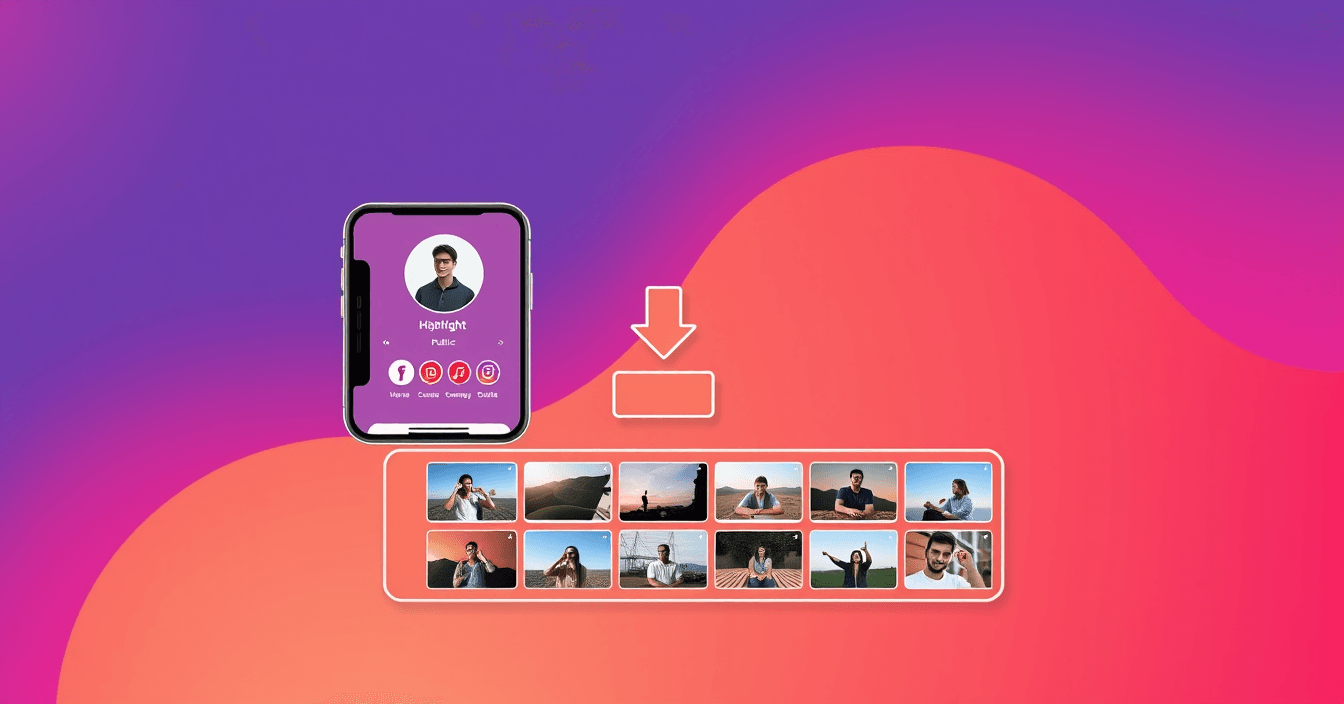
Instagram Highlights sit right on any public profile for anyone to watch, yet the platform gives you no save button. This guide shows you exactly how to save public Instagram Highlights to your camera roll on iPhone or Android using SnapDownloader's free web tool or Android app — in seconds, not in real time.
Why Instagram Doesn't Let You Save Other People's Highlights
Instagram Highlights are curated Story collections that a creator pins to their profile permanently — or at least until they choose to remove them. The account owner can export their own content using Instagram's Archive feature, but that option exists only for the person who posted it. Everyone else, regardless of whether they follow the account, gets a view-only experience.
Screen recording is the fallback most people try first. It works, but the drawbacks are real: you record in real time (a 10-minute Highlight takes 10 minutes), your phone's status bar — battery percentage, time, signal bars — gets burned into the video, and the output quality is capped at whatever your screen displays, not the actual source file quality. Fetching the original video file is faster, cleaner, and produces better results.
That's the gap SnapDownloader's Instagram downloader fills. You copy the Highlight URL, paste it in, and get the video file directly — no recording session, no UI chrome, no compromise on quality.
Before You Start: Two Things to Confirm
Before walking through the steps, check these two things:
- The account is public. Open the profile in a browser without logging into Instagram. If you can see the Highlights without being prompted to sign in, the account is public and the content is accessible. If Instagram asks you to log in just to view the profile, the account is private — and Highlights from private accounts can't be fetched, by design.
- You can get the Highlight URL. Instagram Highlight URLs follow the format:
instagram.com/stories/highlights/XXXXXXXXXX/. The easiest way to get one is to open the Highlight in a mobile browser and copy it from the address bar, or use the Share → Copy Link option inside the Instagram app.
SnapDownloader's web version requires no account, no login, and no app install on iOS. You're ready to go from any browser.
How to Save Public Instagram Highlights on iPhone
iPhone users get the full experience through SnapDownloader's web tool in Safari. Downloads save to your Files app, and you can move them to your Photos library from there.
Step 1: Get the Highlight URL in Safari
Open instagram.com in Safari — not in the Instagram app itself. Navigate to the public profile and tap the Highlight circle you want. Once it's playing, tap the address bar at the top of the screen. You'll see the Highlight URL there. Copy it.
Prefer to start from the Instagram app? That works too. While watching the Highlight, tap the three-dot menu (⋮) at the bottom of the screen and choose Copy Link. This copies the URL to your clipboard without switching to a browser first.
Step 2: Paste into SnapDownloader
Open a new Safari tab and go to snapdownloader.net/instagram. Tap the paste field at the top of the page, paste your copied URL, and tap the download button. SnapDownloader recognizes the Instagram Highlight link automatically — no need to select a platform manually.
Step 3: Download and save to your camera roll
Within a few seconds, SnapDownloader shows the available files from that Highlight. Tap MP4 to save video, or MP3 if you only want the audio from a video clip. Safari will show a download confirmation — tap Download. The file saves to Files → Downloads. To move it to your Photos library, open the Files app, long-press the file, and choose Save to Photos.
If a Highlight contains multiple individual clips, each clip appears as a separate downloadable file. Download them one at a time.
How to Save Public Instagram Highlights on Android
Android users have two options: the SnapDownloader web tool in Chrome (the same steps as iPhone, just in Chrome), or the dedicated Android app. The app is worth installing if you plan to download content regularly.
Option A: Chrome Browser
Follow the iPhone steps above using Chrome instead of Safari. Downloads land in your device's Downloads folder. Open your Files or gallery app to find them — depending on your Android version and phone model, video files may appear in the gallery automatically.
Option B: SnapDownloader Android App (Recommended)
Install the app from Google Play: SnapDownloader on Google Play. The share-sheet integration makes the process noticeably faster once you're set up:
- Open the Instagram app and navigate to the public profile.
- Tap the Highlight you want to save.
- Tap the three-dot menu (⋮) or the share icon, then tap Copy Link.
- Switch to the SnapDownloader app. It often detects the copied URL automatically and shows a one-tap download prompt. If it doesn't, paste the URL into the app's search bar manually.
- Tap Download. The file saves directly to your gallery — no navigating to a separate Downloads folder.
The app keeps a local download history, so previously saved files are easy to find. Downloads also continue in the background if you switch apps or lock your screen mid-download — useful for Highlights with many long clips.
Once the video is on your device, the app's built-in video trimmer lets you cut out sections you don't need, and the audio extractor can pull the audio track as an MP3. These editing tools work on any video saved locally on your device, not just content downloaded through the app.
Video Quality and Format: What to Expect
Instagram compresses every video at upload time. What SnapDownloader fetches is exactly the file Instagram currently serves — no better, no worse than what you'd see watching in the Instagram app. For Story and Highlight content, that typically means:
- Resolution: 720p or 1080p, depending on how the creator originally uploaded the clip. Instagram doesn't serve 4K for Stories or Highlights.
- Frame rate: Usually 30 fps.
- Format: MP4 for video clips. If a Highlight includes static image slides rather than video, those download as JPEG files.
- Audio-only option: Select MP3 output in the web tool if you only want the audio from a video clip. On Android, the audio extractor inside the app handles this after download too.
One honest caveat: Instagram's compression is applied permanently at upload time. If the creator uploaded a well-encoded clip, you'll get a good file. If their original upload was already heavily compressed, the download reflects that. There's no way to recover quality that Instagram's processing has already removed — and any tool that claims otherwise is misleading you.
SnapDownloader vs Other Ways to Save Highlights
| Method | Output Quality | Time Required | UI Baked into Video | Works on iPhone |
|---|---|---|---|---|
| SnapDownloader Web | Original (up to 1080p) | Seconds | None | Yes — Safari |
| SnapDownloader Android App | Original (up to 1080p) | Seconds (runs in background) | None | Android only |
| Screen Recording | Lower (display-limited) | Real-time (1:1 with content) | Yes — status bar, time, icons | Yes — built-in |
| Instagram Archive (own content only) | Original | Instant | None | Yes — your posts only |
Troubleshooting: When the Download Doesn't Work
URL returns an error or "content not found"
Open the profile in a fresh browser tab without logging into Instagram. If it asks you to sign in to view the Highlights, the account has gone private since you found it. Private content can't be fetched — this is expected and intentional.
The Highlight has disappeared
Creators can delete Highlights at any time. If the URL you copied no longer loads the Highlight on Instagram itself, the content is gone. SnapDownloader can only fetch content that's still live and publicly accessible at the moment you request it.
Getting only one clip when the Highlight has several
Each Story frame inside a Highlight is a separate file. If you navigated to a specific frame within a Highlight before copying the URL, you may have a single-frame URL rather than the full collection link. Make sure the URL uses the Highlight collection format — instagram.com/stories/highlights/XXXXXXXXXX/ — rather than a deeper story-specific URL.
Download is very slow
Download speed depends on your internet connection and the total file size. Multi-clip Highlights with longer video segments can be several hundred megabytes combined. Using the SnapDownloader Android app lets the download run in the background, so you're not stuck waiting at the screen.
Respecting Creators When You Save Their Highlights
Saving public Instagram Highlights for your own offline use is a reasonable thing to do — keeping a tutorial for later reference, archiving a product demo before it disappears, or reviewing content without needing a connection. Where it becomes a problem is redistribution: reposting someone else's Highlight on your own account, using it in a commercial context, or repurposing it without credit or permission. If you plan to share what you've downloaded anywhere, reach out to the original creator first. Public doesn't mean free to republish — it just means you can view it.
FAQ
Keep reading
All posts →How to Save Public Facebook Videos to Your Phone in HD (2026)
Facebook has no built-in download button, but saving public videos to your phone in HD takes under a minute. Here's exactly how to do it on iPhone and Android — free, no signup needed.
Sponsored Post Rates 2026: What Creators Should Charge
What brands actually pay per sponsored post in 2026, how the per-1,000-follower math works, and how to set a rate you can defend in a negotiation.
How to Back Up Your Own TikTok Videos Before Deleting
Leaving TikTok or clearing out your account? Here is how to back up your own TikTok videos, drafts, covers and profile picture before anything disappears.