
How to Get a YouTube Transcript Free in 2026 (No Sign-Up)
Turn any captioned YouTube video into readable text in seconds. Plain text, timestamps or an SRT file, free in your browser with no extension and no account.
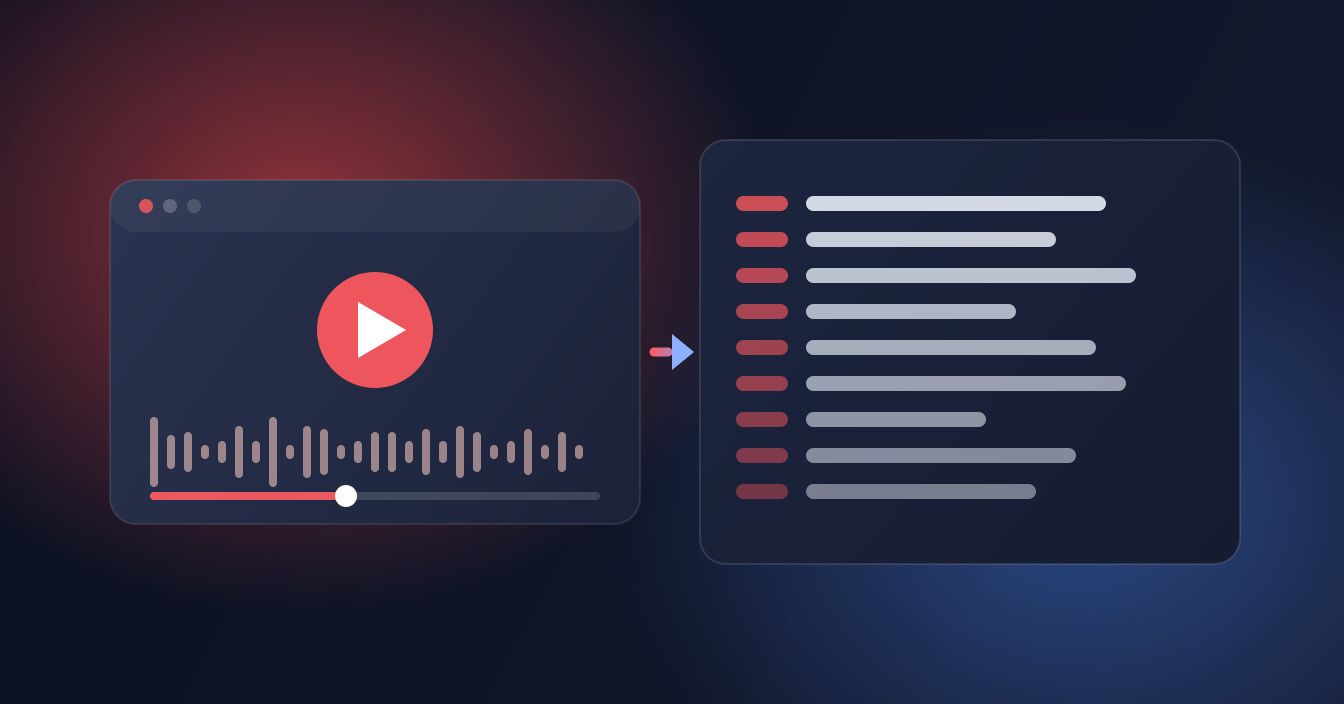
A YouTube transcript is the fastest way to turn a 40-minute video into something you can skim, search and quote. You do not need an extension or a subscription to get one — paste the video link into a browser tool and you get the full text back in a few seconds, with or without timestamps.
What a YouTube transcript actually is
Almost every video on YouTube already carries a caption track. Some are written by the creator and uploaded as a subtitle file; most are produced automatically by YouTube's own speech recognition when the video is processed. A transcript tool reads that existing caption track and hands it to you as readable text.
That distinction matters more than it sounds. The YouTube transcript generator extracts captions that are already attached to the video — it does not listen to the audio and transcribe it from scratch, and it does not give you the video or audio file. If a video has no captions of any kind, there is nothing to pull, and any tool claiming otherwise is either transcribing audio itself or guessing.
It also means the text you get is exactly what YouTube already shows in its own caption box. Nothing is being unlocked or bypassed: captions on a public video are public.
Get the transcript in three steps
- Copy the video link. On desktop, the address bar is fine. In the mobile app, tap Share under the video, then Copy link. Watch links, short youtu.be links and Shorts links all work.
- Paste it into the tool and press Get transcript.
- Choose how you want it. Read it as plain text, switch to the timestamped view if you need to jump back to specific moments, or download it as a TXT or SRT file.
There is no account step and nothing to install, which is the main reason people use a browser tool instead of an extension: it works the same on a work laptop with locked-down browser settings as it does on a phone.
If the video is in another language
When a video carries more than one caption track, pick the language you want before generating. YouTube's auto-translated tracks are available too, so a Spanish video can come back as English text. Machine translation of machine transcription compounds errors, so treat translated output as a rough draft rather than a quotable source.
TXT, SRT or timestamps: which one you want
The right output depends entirely on what you are doing next.
| Output | What you get | Best for |
|---|---|---|
| Plain text (TXT) | Continuous paragraphs, no timecodes | Reading, note-taking, pasting into a summariser or a doc |
| Timestamped view | Text split into lines, each tagged with its time | Finding the exact moment a point was made |
| SRT file | Numbered cues with start and end timecodes | Dropping subtitles onto your own footage in an editor |
If you specifically want a subtitle file rather than something to read, the SRT downloader is the same extraction pointed at that output — it gives you a .srt with proper cue timings that Premiere, Final Cut, DaVinci Resolve, CapCut and VLC all read without conversion.
On iPhone and on Android
iPhone (Safari)
Copy the link from the YouTube app's share sheet, open the tool in Safari, paste and generate. To keep the text, select it and copy, or use the TXT download — Safari drops the file into Files → Downloads, where Notes, Pages and most editors can open it. Nothing is installed and no permissions are requested.
Android (Chrome)
Same flow. Downloaded TXT and SRT files land in your Downloads folder and show up in Files by Google. If Chrome asks whether to allow downloads from the site, that is the browser's standard prompt for any file, not a warning about the file itself.
When there is no transcript to get
A failed transcript almost always comes down to one of four things:
- Captions are disabled. A creator can turn off automatic captions on their channel. If YouTube's own CC button does nothing on that video, there is no track to extract.
- The video is too new. Auto-captions are generated after upload, not instantly. On a long video, that can take a while — wait and try again.
- It is music, not speech. Speech recognition produces little or nothing useful for a music video, and often no track at all.
- The video is not public. Private and unlisted-but-restricted videos are not reachable by any external tool. That is by design, and it is not something to work around.
The honest answer in those cases is that you need a real speech-to-text service that processes audio, which is a different category of tool with a different cost.
What people actually use transcripts for
- Studying and note-taking. A lecture or tutorial becomes searchable — Ctrl+F beats scrubbing a timeline.
- Research and fact-checking. Reading a 90-minute interview takes ten minutes and you can quote it precisely, with the timestamp attached.
- Accessibility. A text version helps anyone who finds audio hard to follow, and it can be enlarged, reflowed or read by a screen reader.
- Repurposing your own videos. If it is your channel, the transcript is a first draft of the blog post, the newsletter or the description.
- Subtitling your own edits. An SRT saves you typing captions by hand.
One caveat on quoting: auto-generated captions get names, brand names, technical jargon and crosstalk wrong on a regular basis. Before you publish a quote, play that moment and check the words. Manually uploaded captions are usually cleaner, but they are only as good as whoever wrote them.
YouTube's own transcript panel vs a browser tool
Desktop YouTube has a built-in transcript panel: click the three dots under a video, choose Show transcript, and a scrollable list of timed lines appears beside the player. It is genuinely useful, and if you only need to glance at one line, use it.
It runs out of road quickly, though. The panel does not exist in the mobile apps in the same form, selecting the whole thing and copying it pulls the timecodes in as messy inline text, and there is no export — you cannot get a clean paragraph or a subtitle file out of it. A browser tool exists to close exactly that gap: same source captions, but formatted for whatever you are doing next.
Shorts work the same way
Shorts get auto-captions like any other upload, so a Shorts link resolves the same as a watch link. The transcripts are short enough that the plain-text view is usually all you need — the timestamped view earns its place on long-form video.
A note on what you can do with the text
Captions are the creator's work. Using a transcript for your own notes, study, research or accessibility is ordinary personal use. Republishing someone's transcript as your own article, or feeding it into a product you sell, is a different thing — credit the creator and link the source, and ask first if the use is commercial.
Where this sits alongside the rest of the toolkit
The transcript generator is a text tool. It returns words, not media files, which makes it one of the lighter-weight things on SnapDownloader — no queue, no processing time, no file to manage unless you ask for one. Pair it with the timestamped view when you are hunting for a specific moment, and with the SRT export when you are working in an editor. Both are free, both run in the browser, and neither asks you to sign up.
FAQ
Keep reading
All posts →Instagram Reel Thumbnail Size, Aspect Ratio and Safe Zone
Meta's only official Reel cover size, why 1080 × 1920 works better, what the 3:4 grid and Reels tab cut off, and where faces and text stay safe.
Download Snapchat Story Videos From a Public Link (2026)
Copy a public Story's link, paste it, and save each snap as an MP4 with sound. Steps for iPhone and Android, real quality, and why links expire.
Can You Download Snapchat Videos in HD? The Honest Answer
A Snapchat download is the exact file Snapchat serves, and we measured public Stories at 480 × 852. Why it isn't 1080p, and what helps.